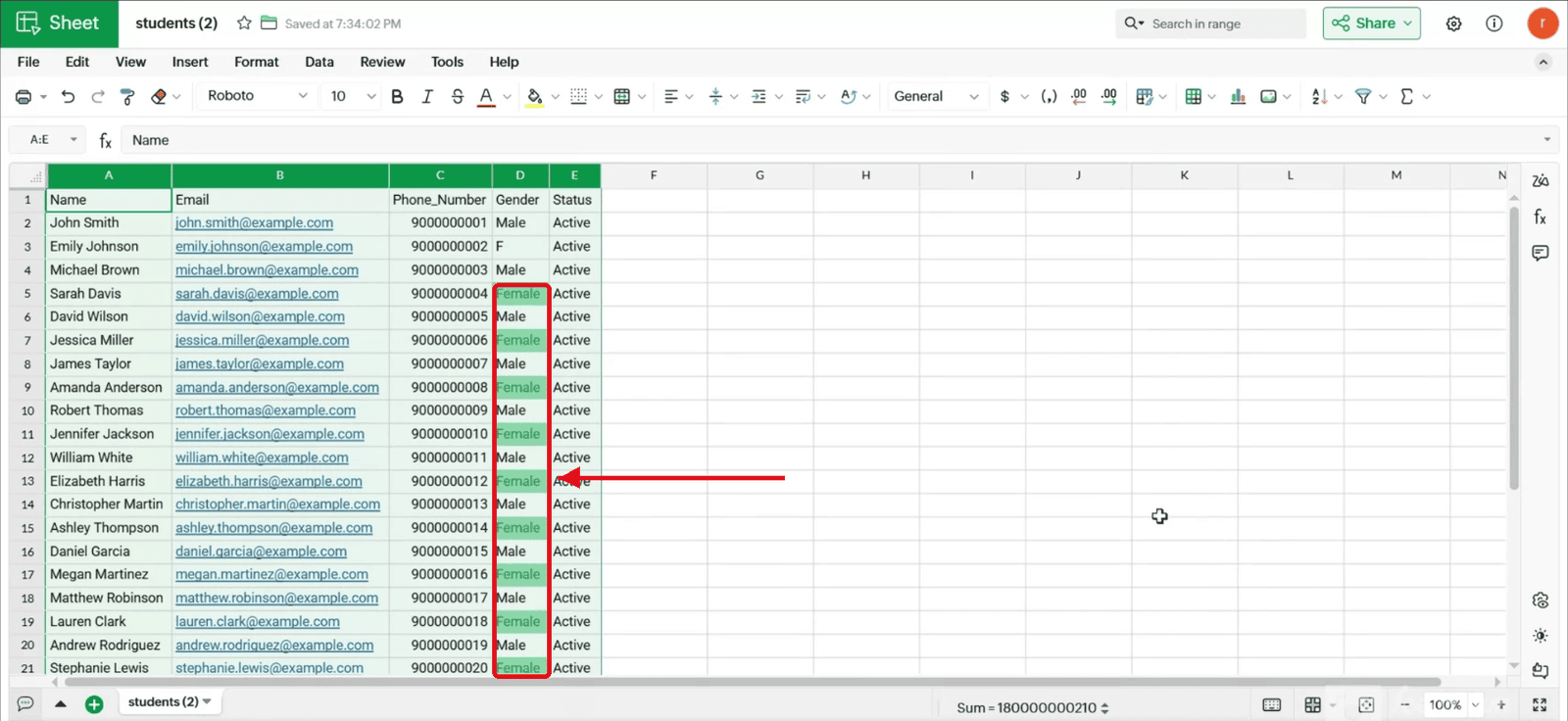
Automatically Highlight Data Using Conditional Formatting
Here is our approach for highlighting data automatically in Zoho Sheet in a simple way.
Even a non-technical person can easily set it up in just a few steps

Approach
We can highlight matching data automatically in a Zoho Sheet spreadsheet using conditional formatting, with the following steps
1. Opening the Spreadsheet
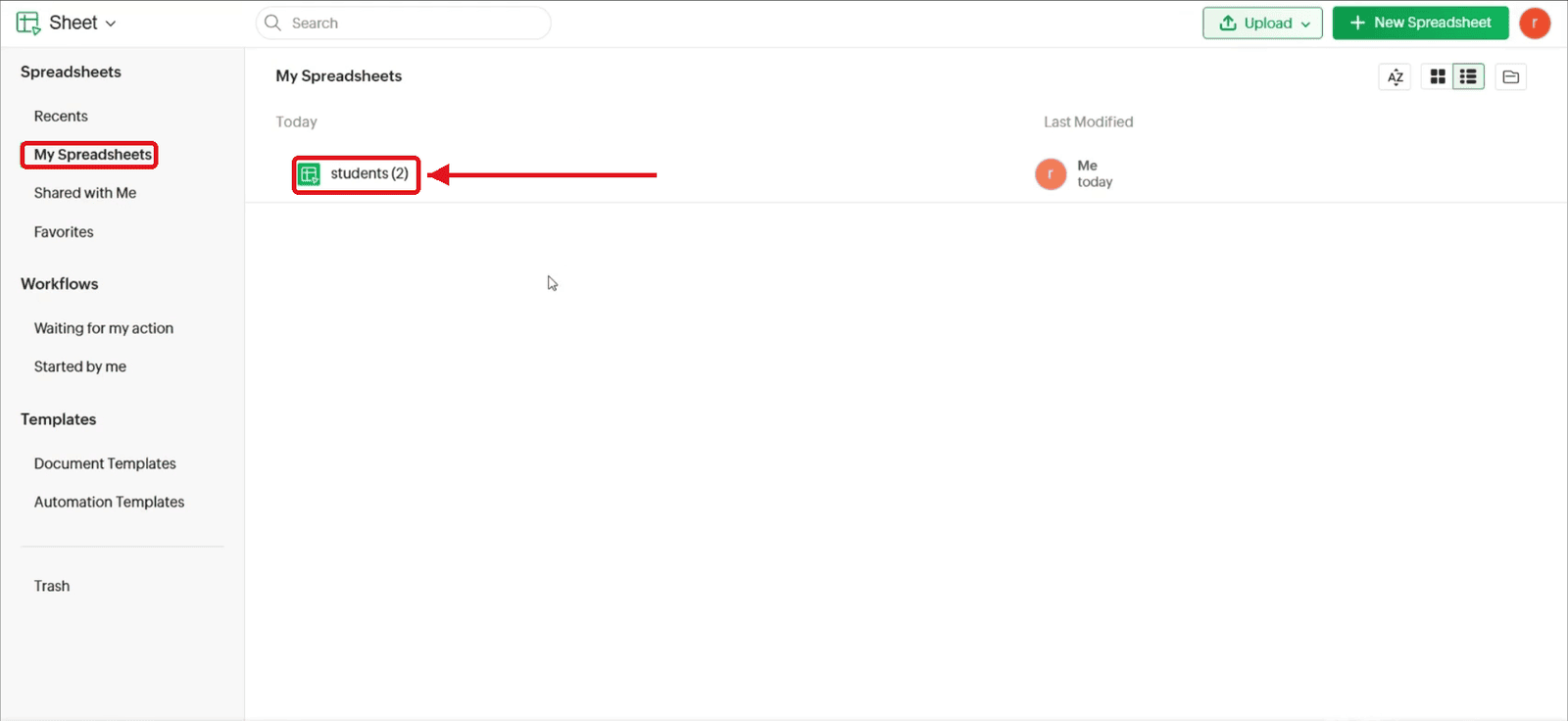
1.1 Open Zoho Sheet and go to "My Spreadsheets". Click the spreadsheet you want to format.
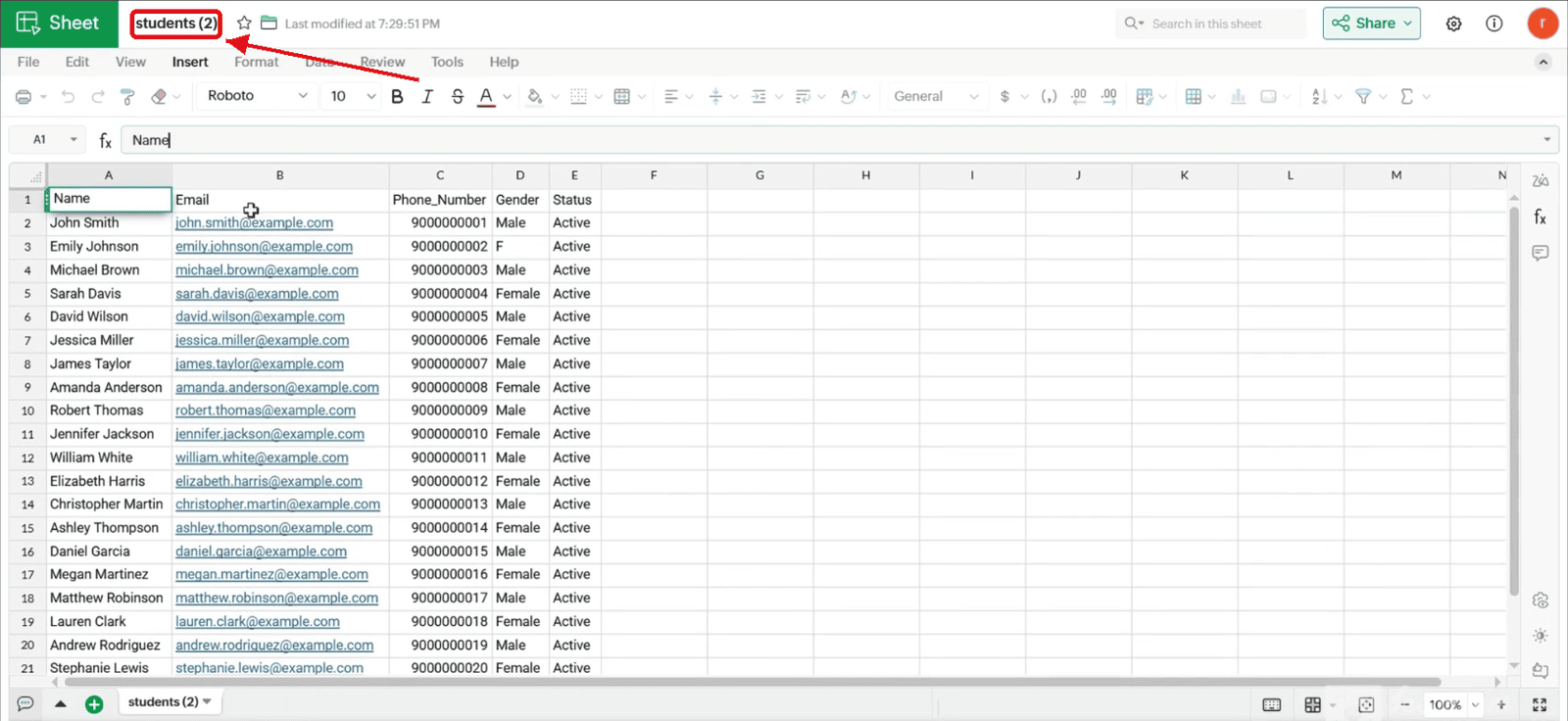
1.2 The spreadsheet opens and shows your data.
2. Selecting the Range
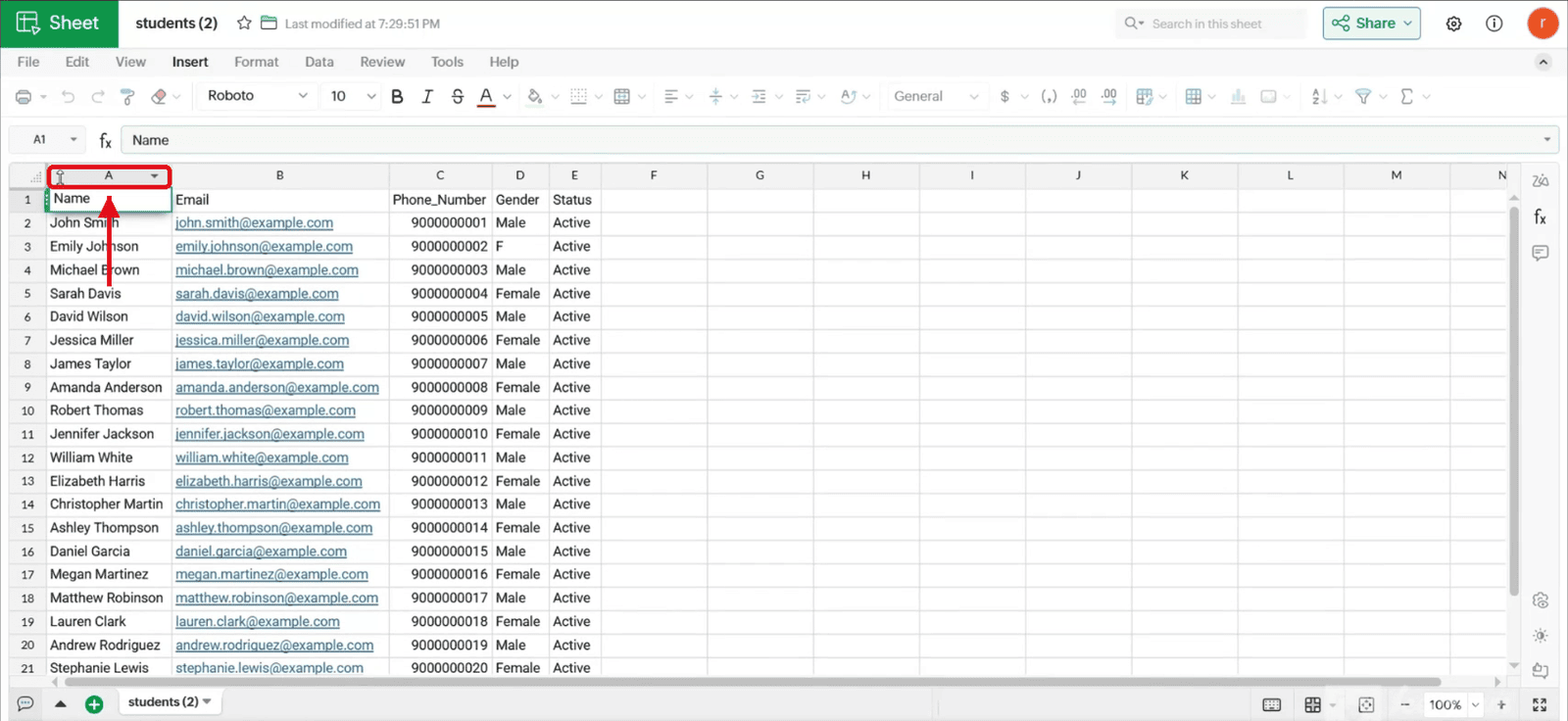
2.1 Click the header of the first column you want to format (example: column A).
2.2 Drag across the column headers to select the rest of the range (example: columns A to E). The selected columns turn green.
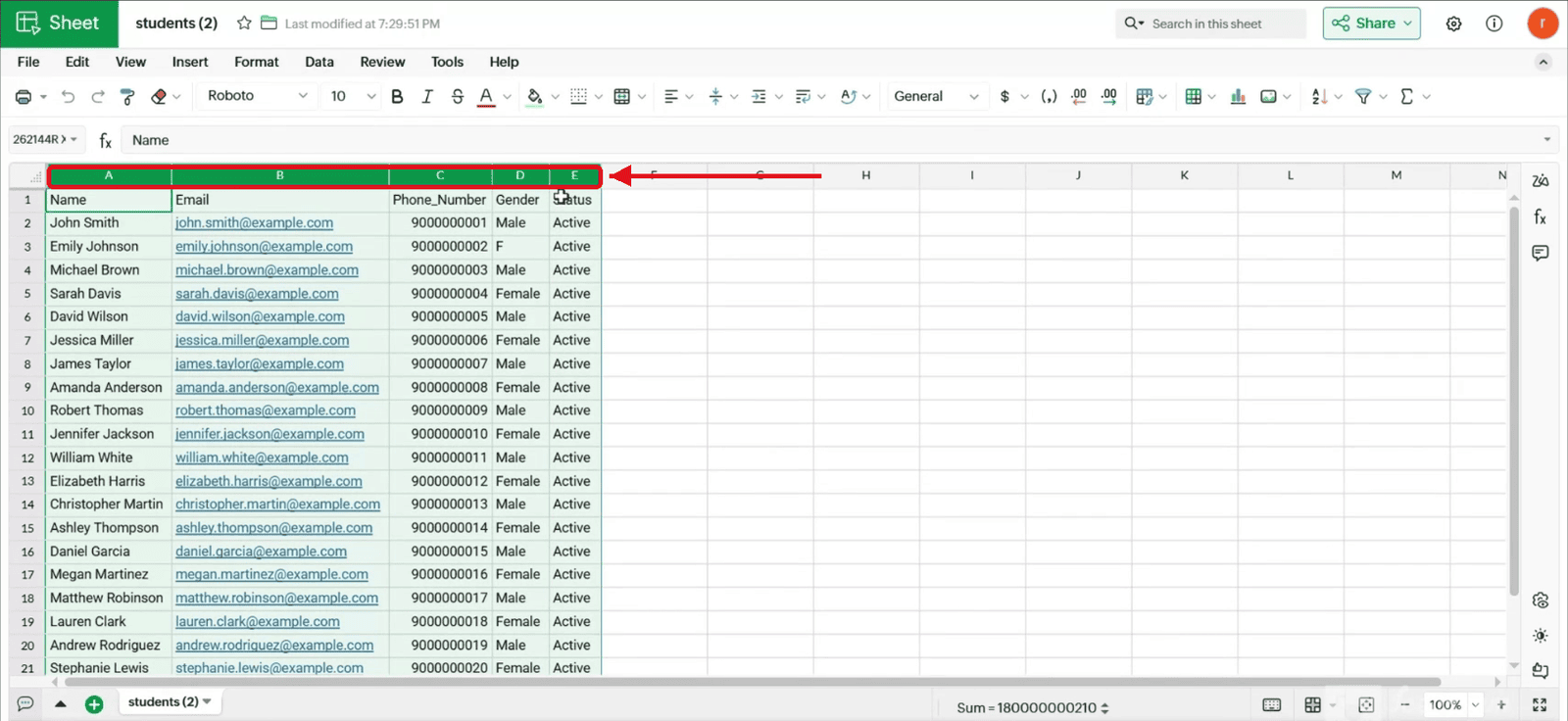
3. Opening Conditional Formatting
3.1 Click "Format" in the top menu.
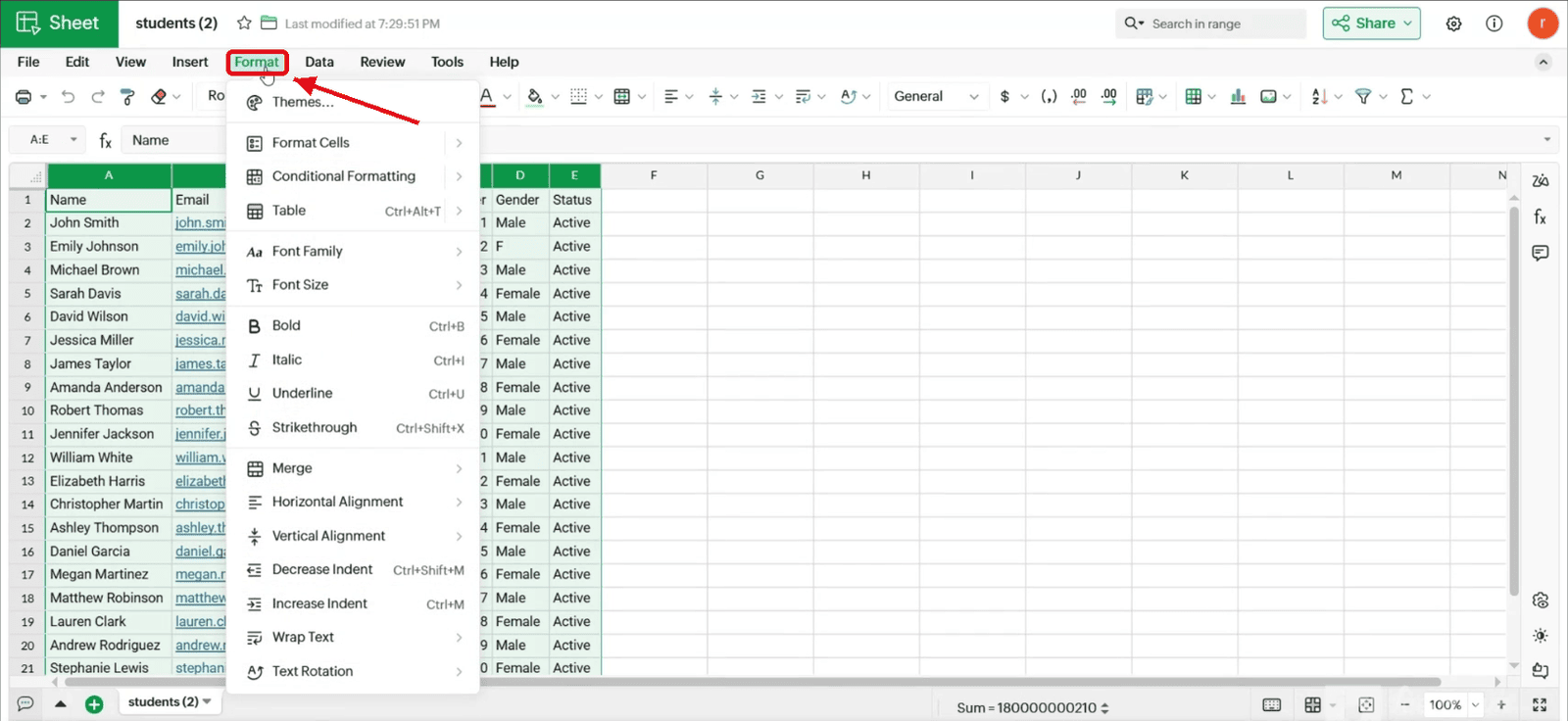
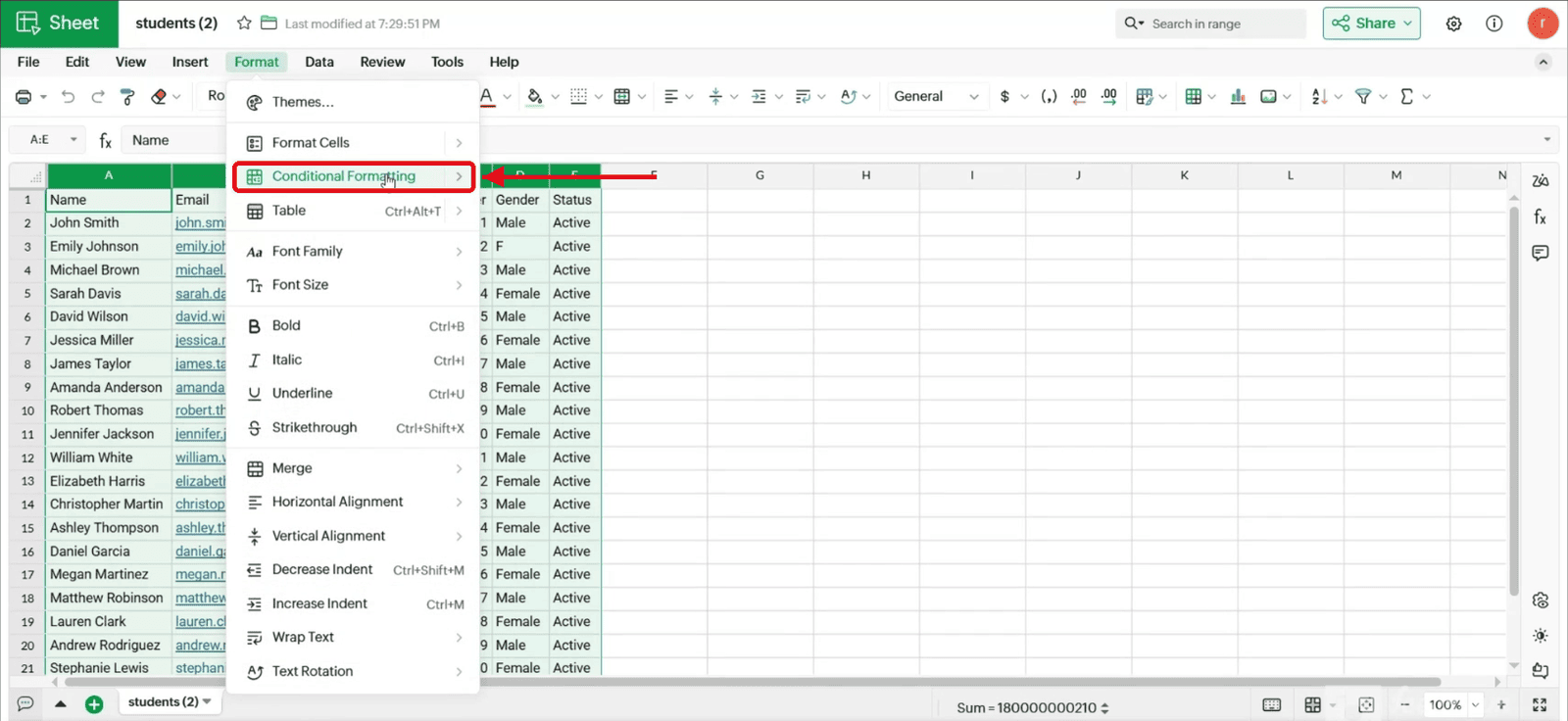
3.2 Hover over "Conditional Formatting".
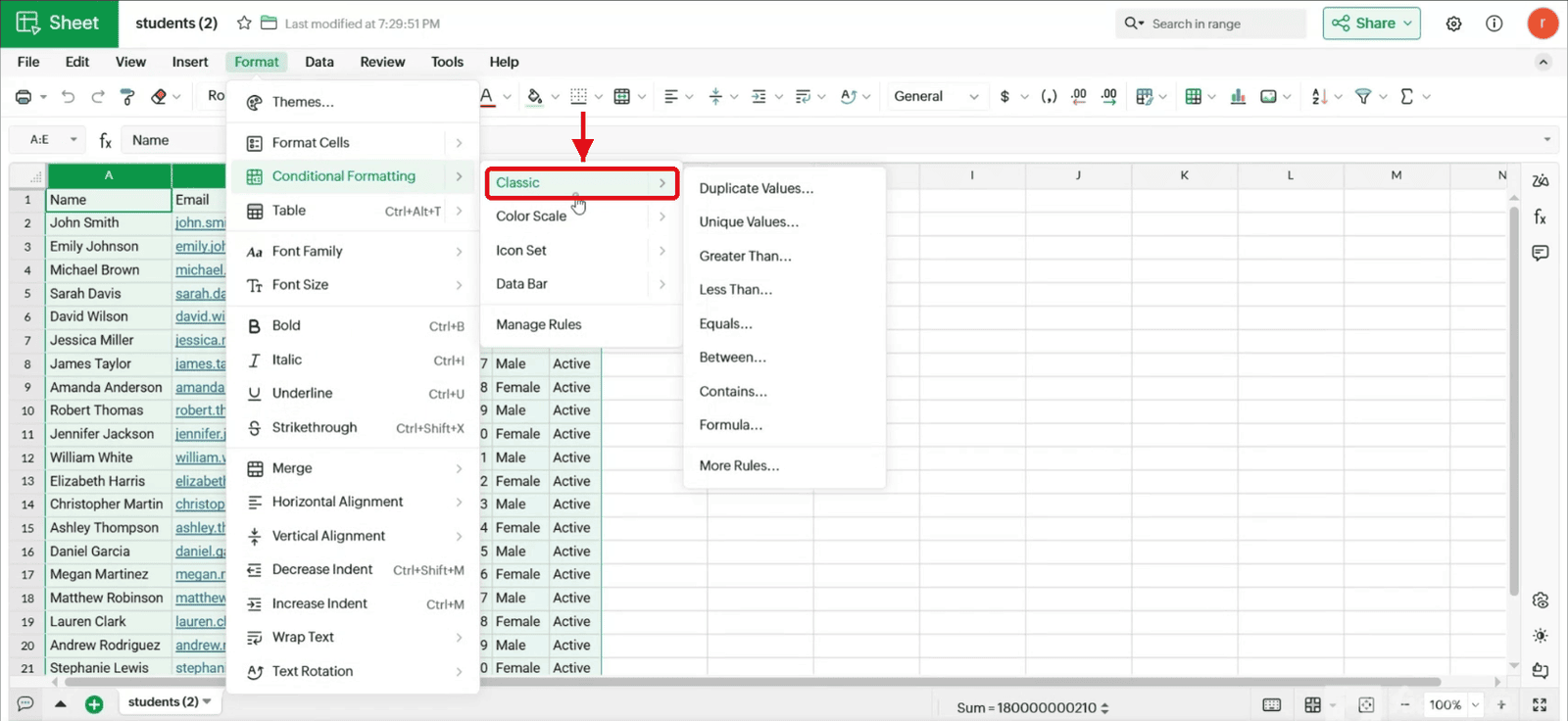
3.3 Select "Classic" from the list that opens.
3.4 The "Conditional Formatting" panel opens on the right. It shows the range you selected next to "Applies to".
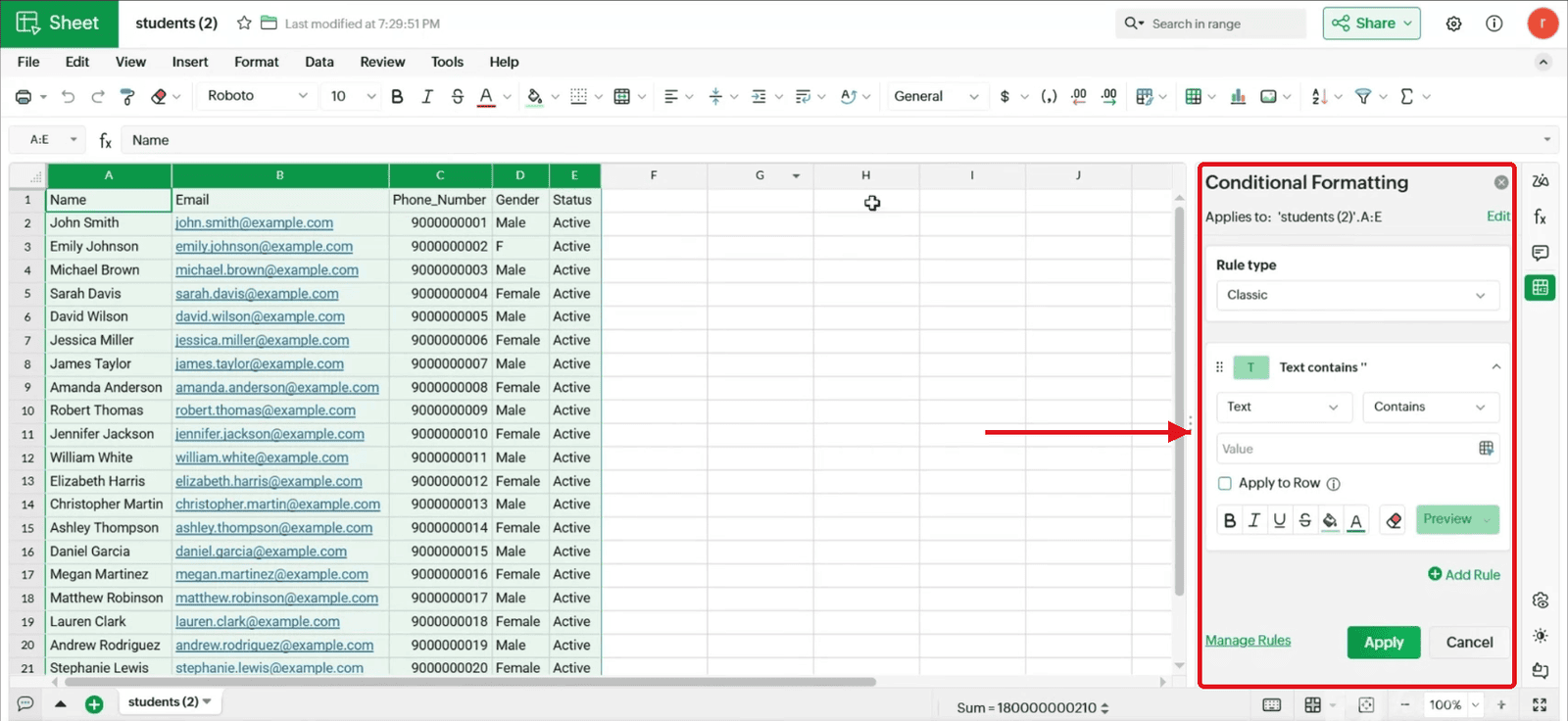
4. Setting the Condition
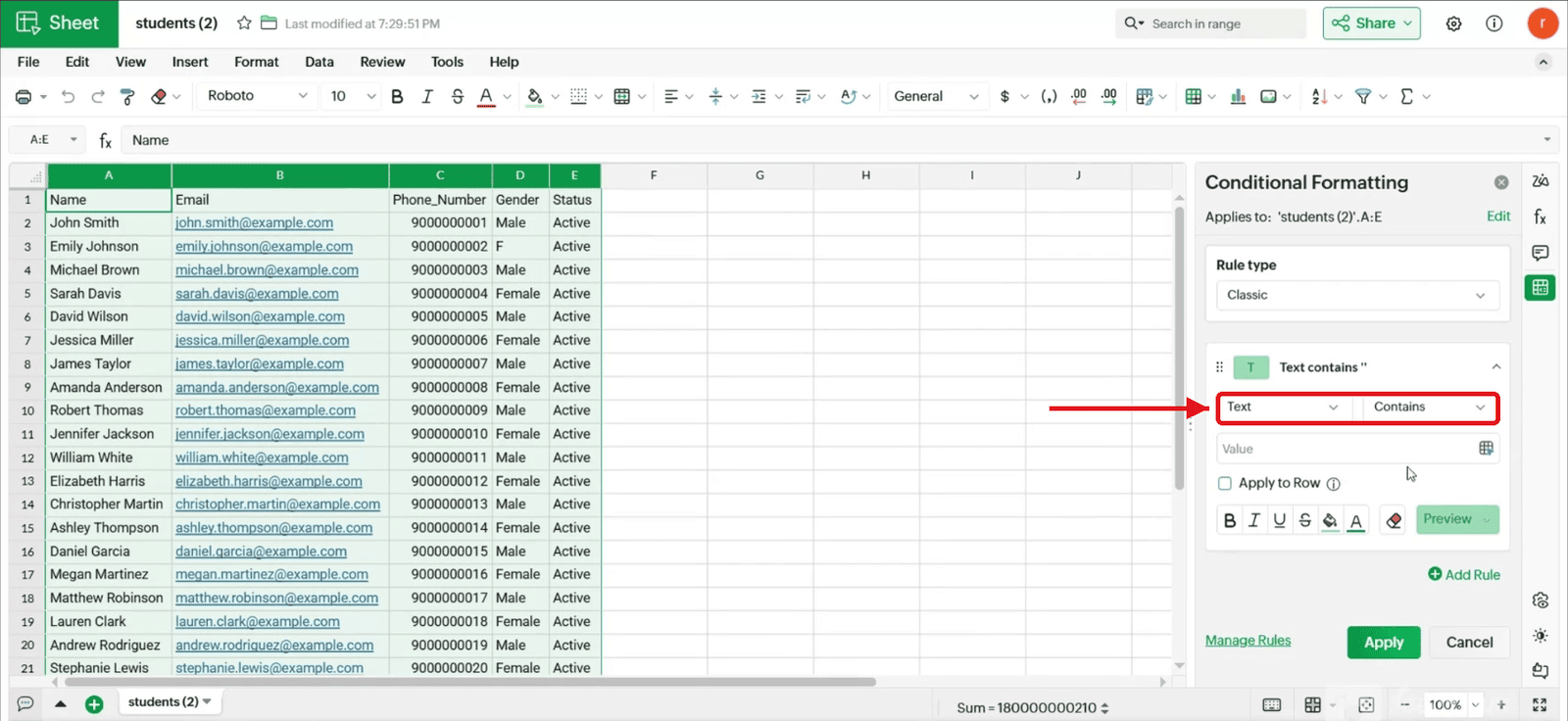
4.1 In the panel, check that the rule is set to "Text" and "Contains".
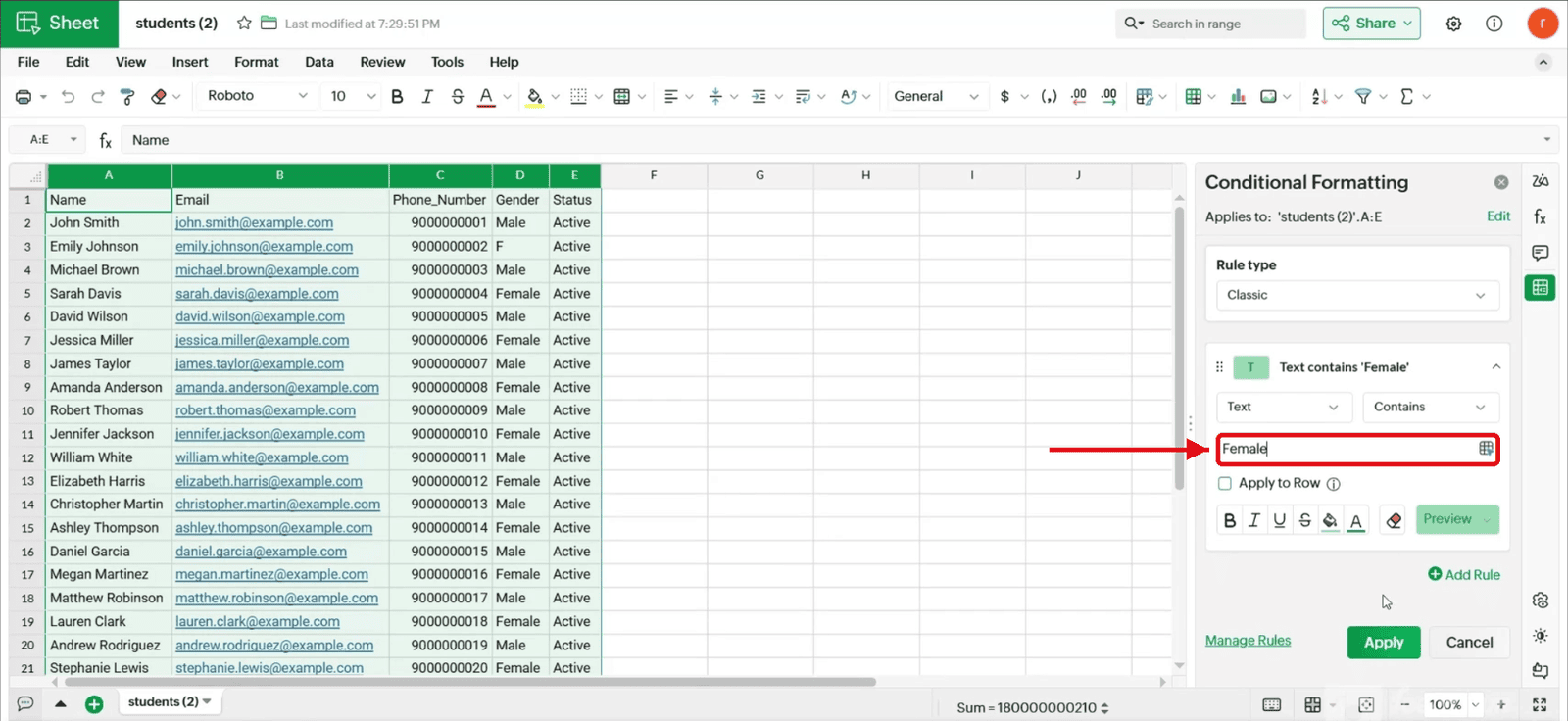
4.2 In the "Value" field, type the text you want to find (example: Female).
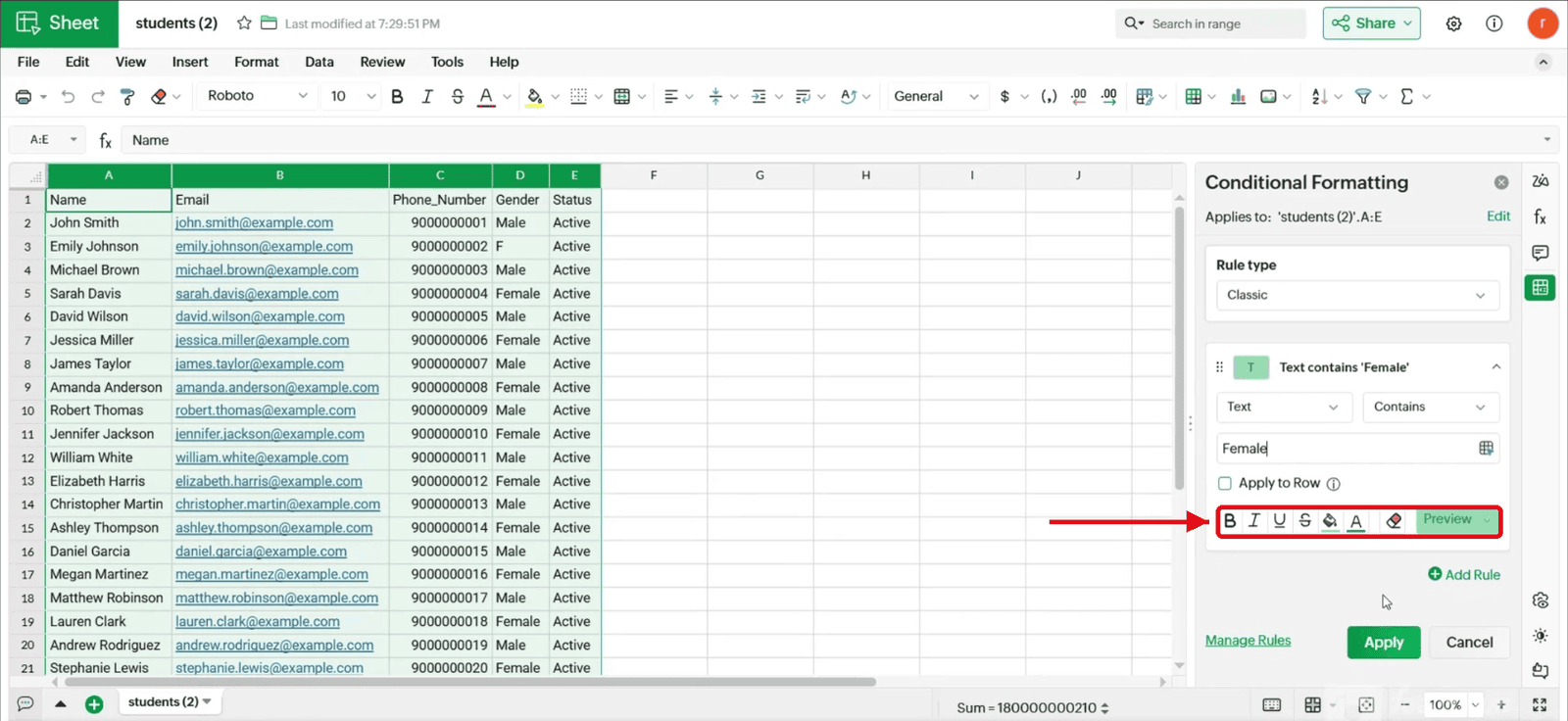
4.3 Choose how the matching cells should look using the formatting icons: bold, italic, underline, strikethrough, fill color and font color. The "Preview" box shows the style. In this example, matching cells get a green fill.
5. Applying the Rule
5.1 Click "Apply".
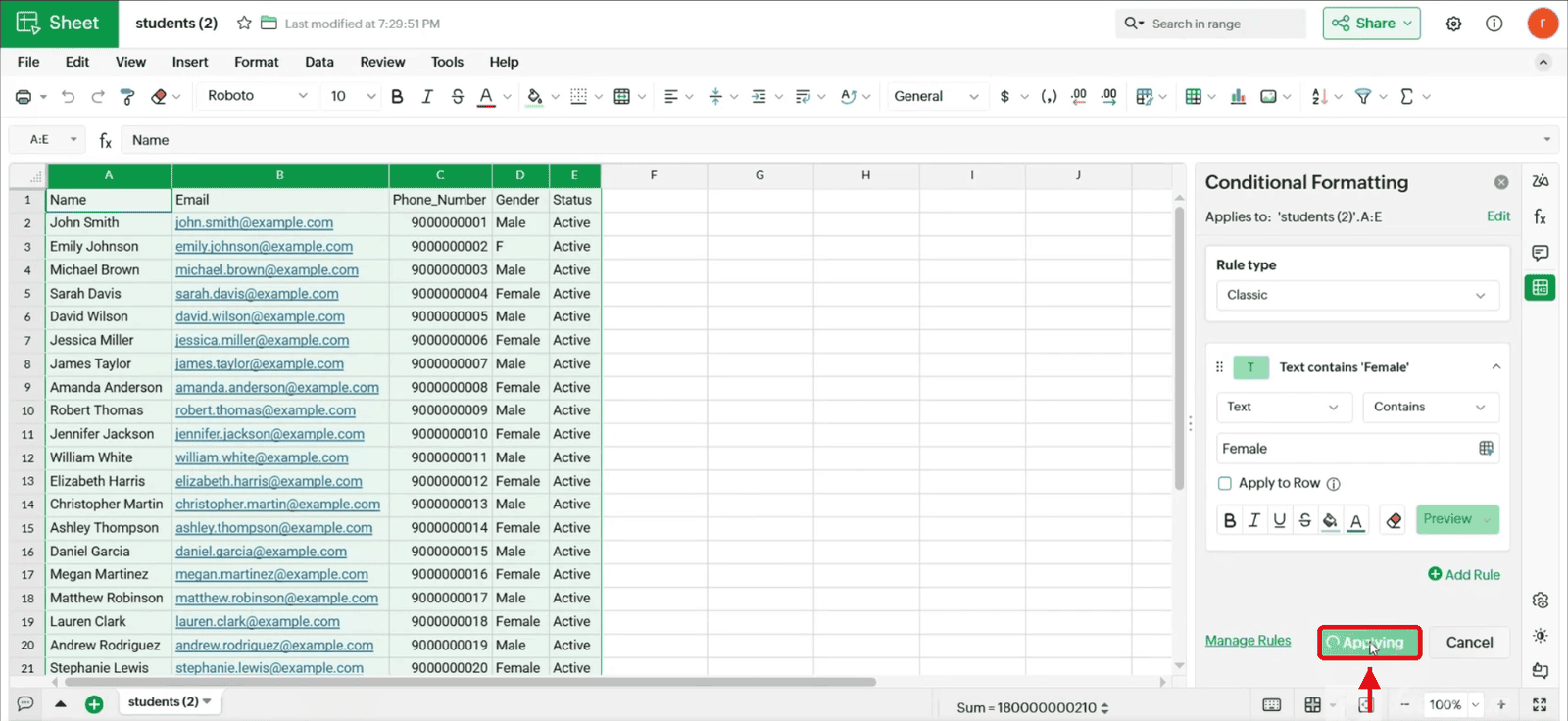
5.2 All matching cells across your selected range are highlighted instantly. Here, every "Female" cell in the Gender column is now green.